
Mask PII before it ever hits storage with RunReveal Pipelines

Security logs have a habit of picking up data they were never supposed to carry. Payment events come through with card numbers attached. Application logs capture billing zips, phone numbers, and cardholder names, and for payment data specifically, that's PCI DSS scope whether you meant to bring it into scope or not. Once that data lands in your log platform, it's a compliance problem you now own, subject to every retention, access, and audit requirement that PII brings with it.
Today we're introducing a new step in RunReveal Pipelines: field masking. You can now redact, hash, or partially mask any field in your logs as they flow through a pipeline, before they're stored. If you're handling payment logs, healthcare data, or anything else you'd rather not have sitting in your platform in plaintext, masking makes PII compliance a pipeline configuration instead of an engineering project.
The best part: it requires zero changes on the source side. Your applications keep emitting logs exactly as they do today, and the pipeline handles the rest. In this post we'll walk through a real example end to end: bringing in a custom log source full of payment data, then masking the sensitive fields with a single pipeline rule.
Follow along: everything in this walkthrough is ready to run yourself. The synthetic log generator, a sample event for field mapping, and a step-by-step quickstart are at github.com/runreveal/pii-masking-demo. Clone it and you can go from an empty custom source to masked fields in your own workspace in about 10 minutes, without touching your production logs.
Video Walkthrough
The setup: payment logs with PII
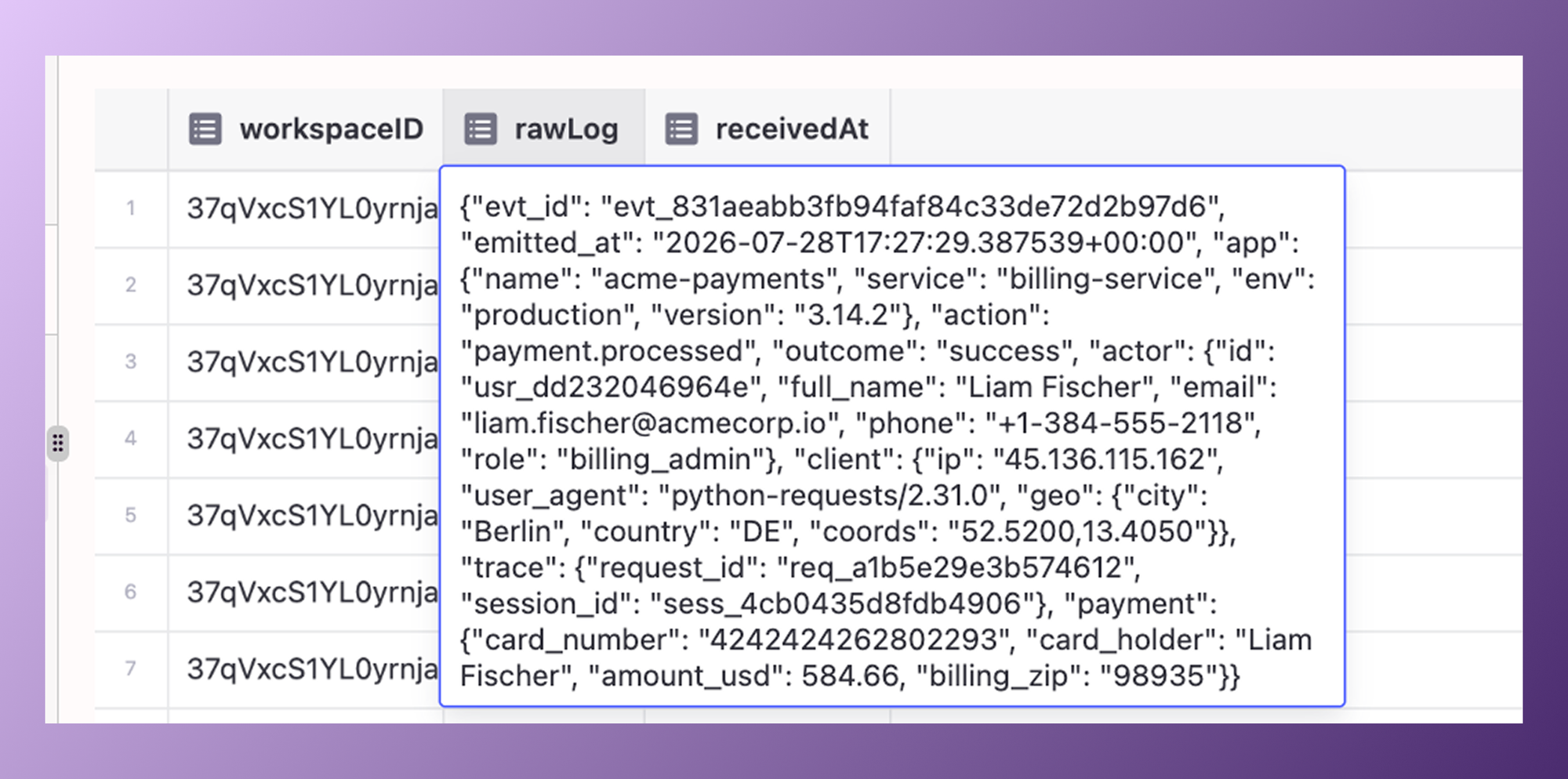
For this walkthrough, we have a script generating JSON payment logs for a fictional app called Acme Payments. Each event looks something like a typical application log: an environment ID, a timestamp, an app name, and a payload with fields like payment.card_number, payment.card_holder, amount_usd, and billing_zip.
Exactly the kind of data you want visibility into for detection, and exactly the kind of data you don't want stored unmasked.
Step 1: Connect a custom source
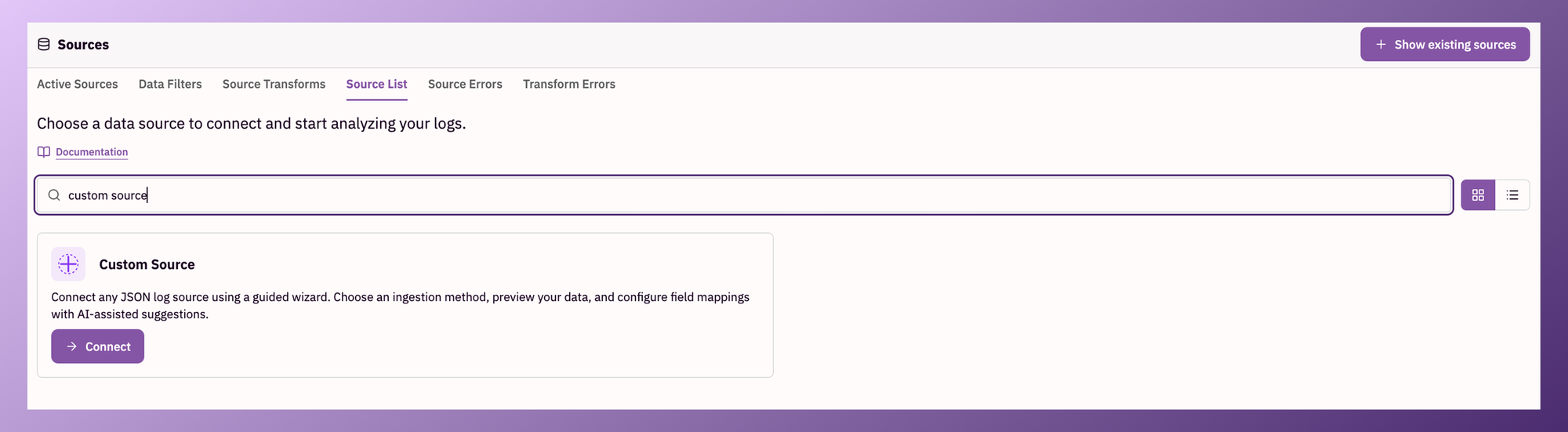
Custom sources let you bring any log format into RunReveal without writing a parser or deploying an agent. From the source list, choose Custom Source → Connect.
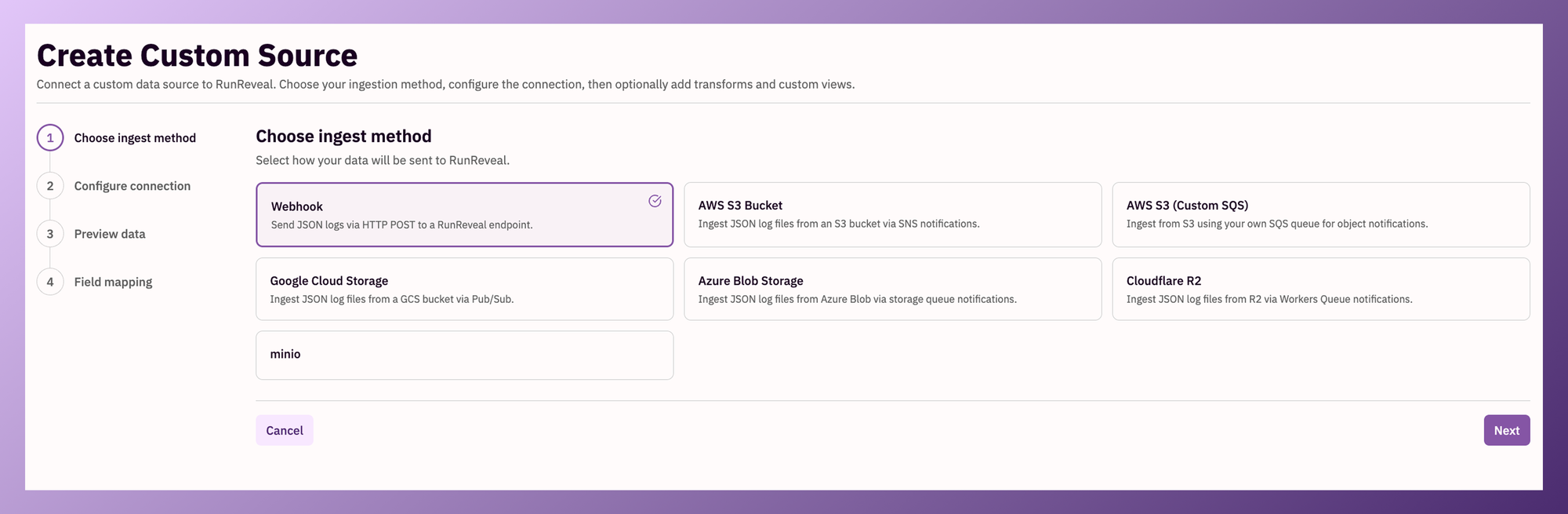
You can ingest from an object store (S3, GCS, Azure Blob, R2), but for this demo we'll use a webhook: RunReveal generates a URL, and our script will push logs straight to it.
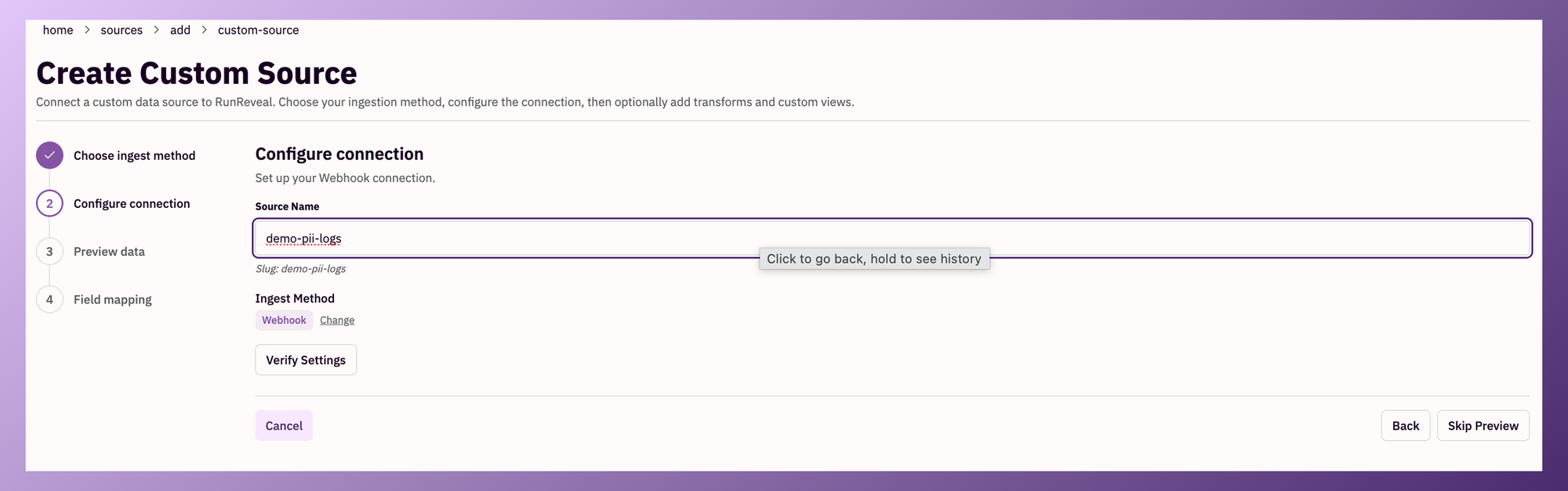
We'll name the source demo-pii-logs.
Step 2: Map your fields to the data model
This is where custom sources get interesting. Paste in a sample of your JSON, click Detect Fields, and RunReveal turns each JSON path into a column in your custom view, then lets you map paths to our normalized data model. In our example, evt_id maps to the normalized ID field, emitted_at maps to event time, action becomes the event name, and app.service maps to service.name. Anything that doesn't fit the normalized model can be added as a tag: the app name, environment, version, or outcome.
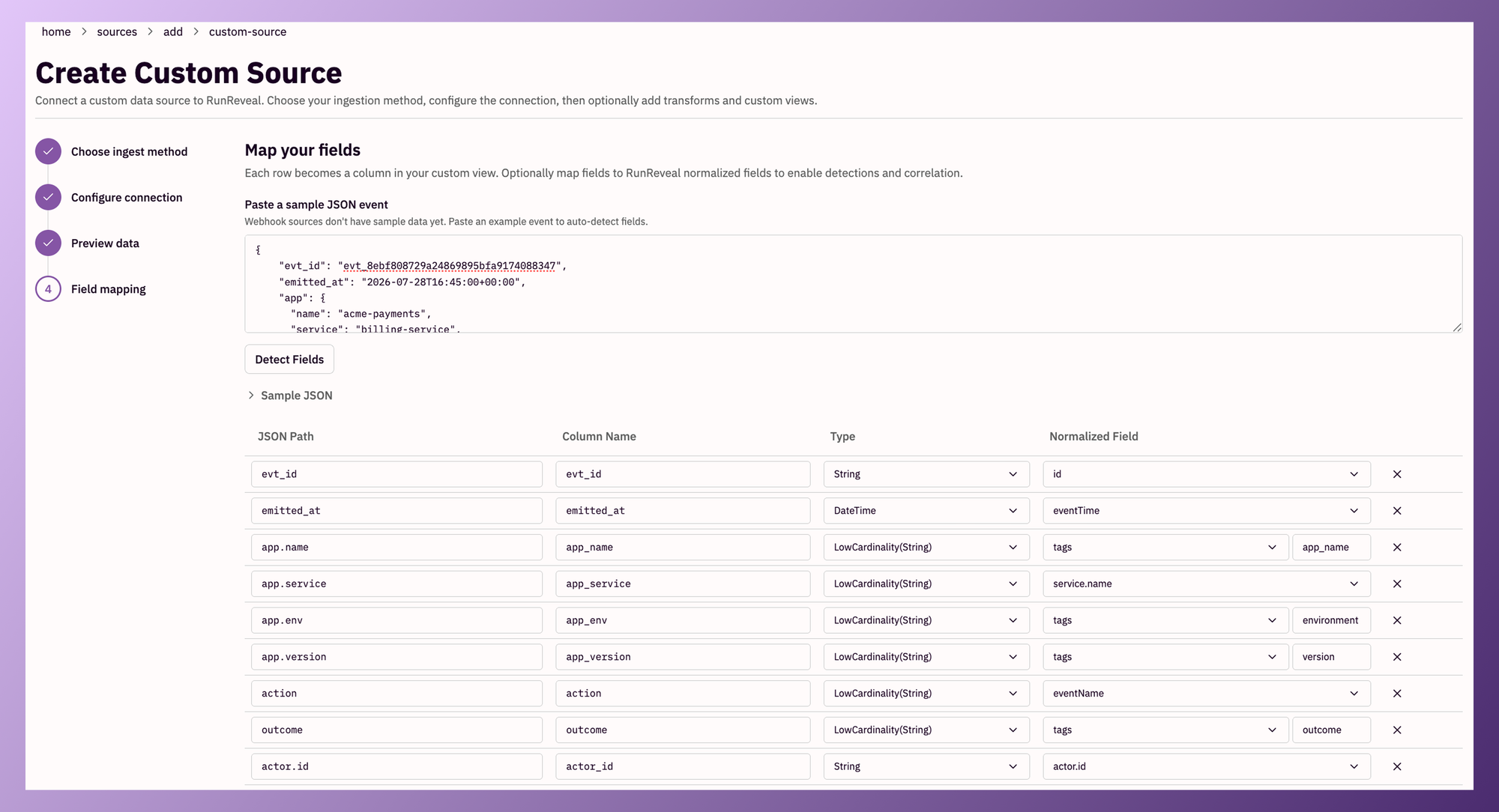
If you'd rather not map everything by hand, AI Suggest will propose field mappings automatically based on the semantic meaning of each field.
Mapping matters because normalization is what makes custom logs first-class citizens in RunReveal. Once the platform and the AI agent know where your data lives in the data model, you can build detections and alerts on custom logs the same way you would on any native source. As always, RunReveal stores the raw log alongside the normalized version, so you never lose the original context.
Preview the transform to confirm the data looks right, then connect the source. Copy the webhook URL, point your script (or your application) at it, and send a few events. Refresh, query the new source, and the logs are there: card numbers, amounts, and all, completely unmasked. Time to fix that.
Step 3: Create a masking pipeline
Head to Pipelines and create a new topic (we'll call it "PII Masking") with a precondition that exact-matches the source ID of the custom source we just connected. That routes every event from demo-pii-logs into this pipeline and nothing else.
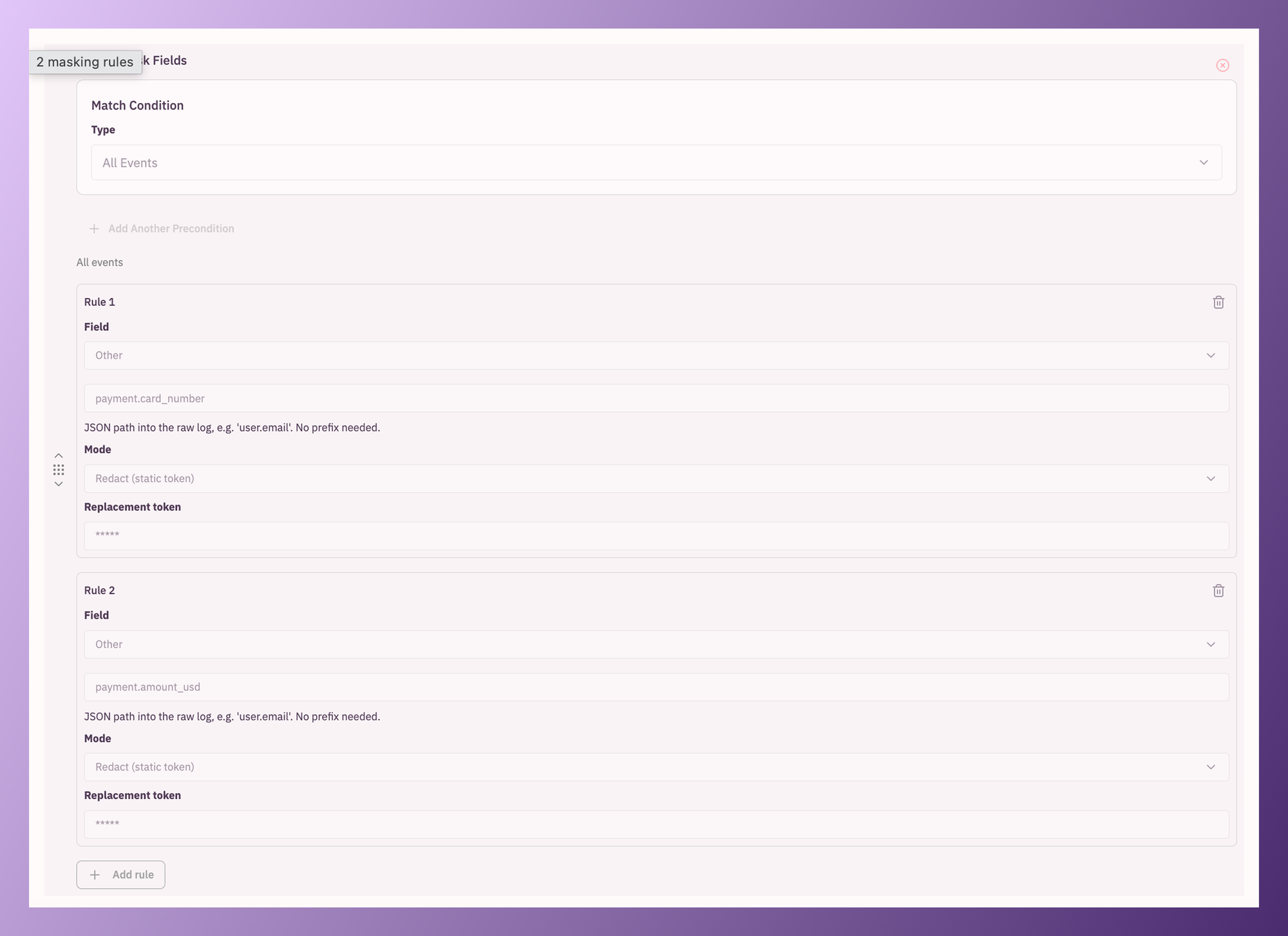
Copy the pipeline steps from your existing default pipeline, then add a Mask Fields step. One ordering note: put masking first. The default pipeline runs other steps out of the box, and you want sensitive fields masked before anything downstream touches them.
Set the match condition to All Events, then add a rule for each field you want masked. A rule is just the JSON path into the raw log, no prefix needed. For payment.card_number, we'll choose Redact (static token) with a replacement token of *****, though depending on your needs you can also hash the value (useful when you still want to correlate on it) or apply a partial redact (keep the last four digits of a card, for instance). Add a second rule for payment.amount_usd, complete the pipeline, and enable it.
The before and after
Run the script again, this time sending a few dozen events, and query the source. The events that arrived before the pipeline existed still show the raw card numbers. That's expected: masking only applies to events processed after the step goes live, so if PII already reached storage before you turned masking on, you'll want a plan for those older events too, whether that's deleting them or reingesting from source now that masking is in place. Every event that flowed through the masking step shows stars where the card number and amount used to be.
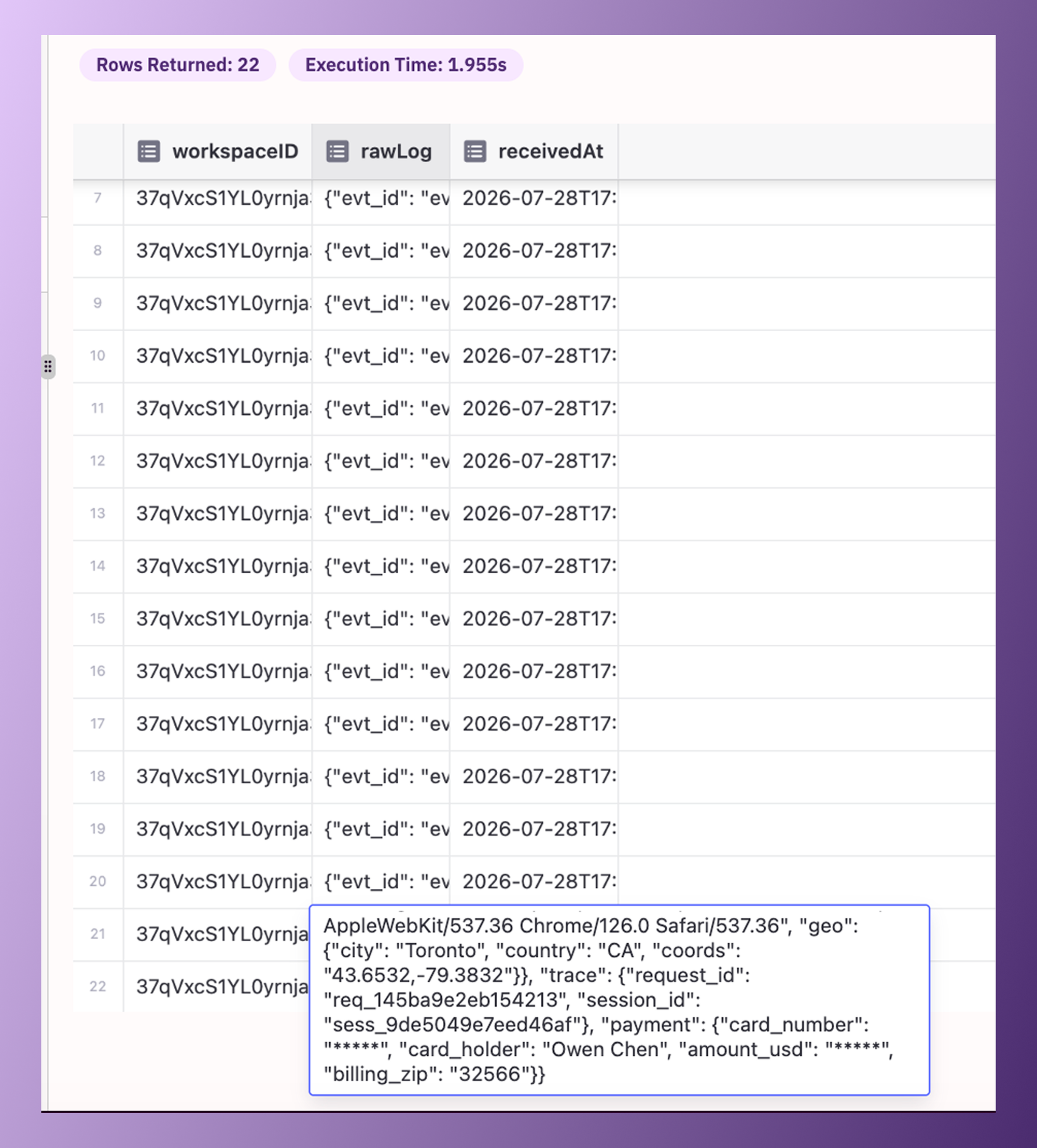
Look closely at where the stars appear: in the stored raw log itself. Masking happens in the pipeline, before storage, so the sensitive values never persist anywhere in the platform: not in the normalized columns, and not in the raw log either.
That's the whole workflow: a custom source connected in a couple of minutes, and a masking rule that guarantees sensitive fields never land in your platform unprotected. No source-side changes, no custom code, no preprocessing infrastructure to maintain.
Clean data in, clean data stored
We've said it before: the secret to detection is clean data, and by the time logs reach storage, the data is as clean as it will ever be. Masking extends that idea to compliance. Filtering decides which logs you keep, transforms decide what shape they take, and now masking decides what's allowed inside them.
Try it yourself
Want to run this exact demo in your own workspace? We've published the log-generator script and a step-by-step quickstart at github.com/runreveal/pii-masking-demo. It generates synthetic Acme Payments events (test card numbers, fake names, nothing real), so you can go from an empty custom source to masked fields in about 10 minutes, without touching your production logs.
Masking is available now in Pipelines for all customers. If you're dealing with PII in your logs (payment data, customer records, anything you'd rather not store in plaintext), we'd love to help you set this up with your own data. Reach out to us here and let us know how we can help.